Managing Maps
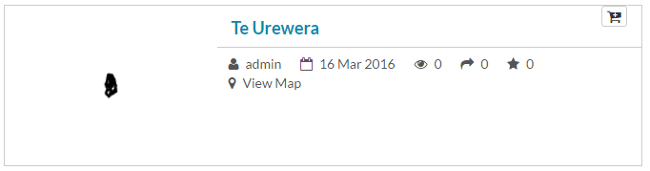
Every map has it’s own page that provides more information about the map along with other options such as permissions and metadata. To get to the page for a map, click on the name of the map.
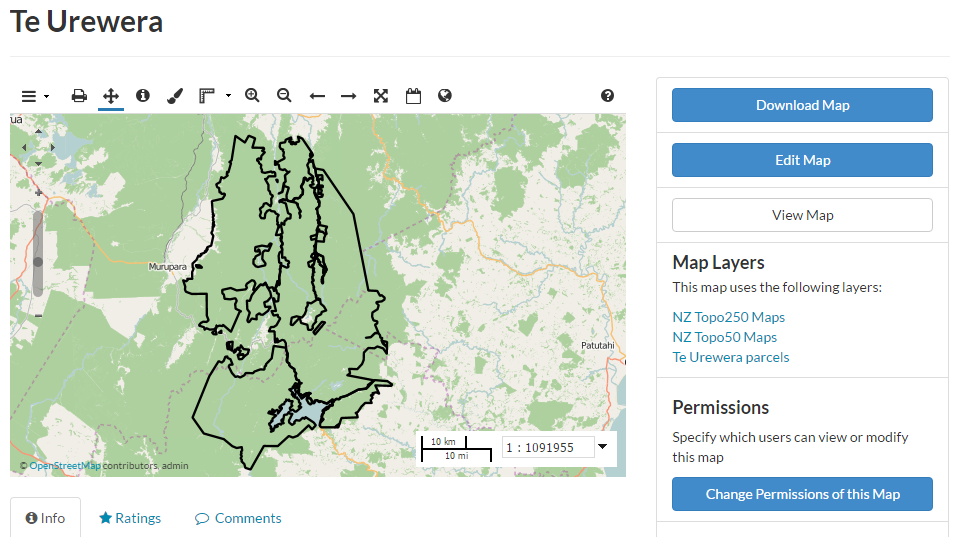
The map detail page provides a view of the map, along with information about the map. It also tells you the layers that are used in the map.
Download Data Layers
This will allow you to download the contents of the map that are stored in Geoshape. It does not download data from other servers, however.
Click on the Download Map button.
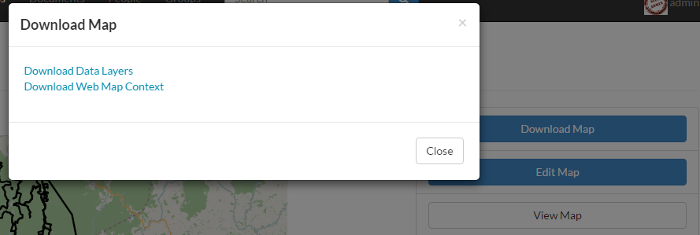
Download map menu
Select Download Data Layers
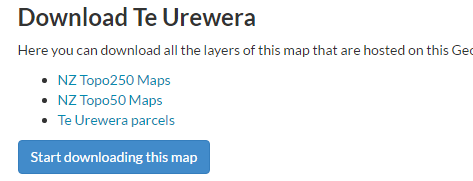
Select the layer(s) that you want to download individually OR click on Start downloading this map
Download Web Map Context
The Web Map Context (WMC) is an open geospatial consortium (OGC) standard for metadata describing a map service.
Click on the Download Map button.
Download map menu
Click on the Download Web Map Context button. A new tab will open with the XML for the web map context.
Edit Map Metadata
You can edit the information about the map.
Click on the Edit Map button
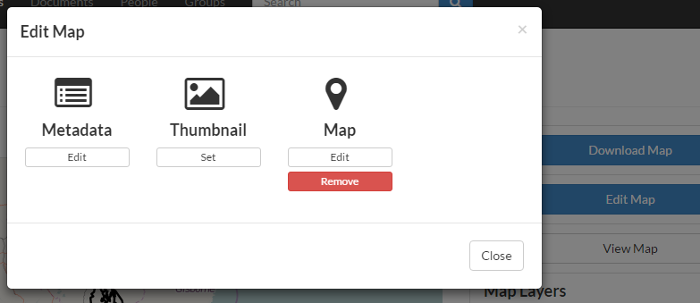
Edit map menu
Click on Edit Map Metadata
In the metadata page, update the information about the map.
Click the Update button at the bottom of the page to save your changes.
Set Map Thumbnail
By default the thumbnail images for maps will only have the vector layers. In order to include the background map you will need to create a new thumbnail.
Pan and zoom the inset map so that it’s centered on the view you would like for the map thumbnail.
Click on the Edit Map button
Edit map menu
Click on Set. This will set the map thumbnail with the base map and layers included.
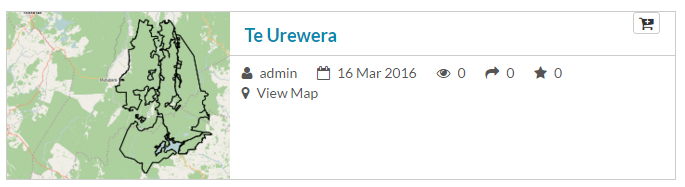
Map with thumbnail
Edit Map Permissions
The map permissions determine which users can view or edit a map.
Click on the Change Permissions of this Map button
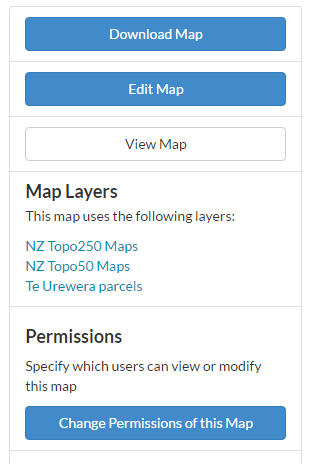
Edit map menu
Set the permissions for viewing, editing, and managing as desired.
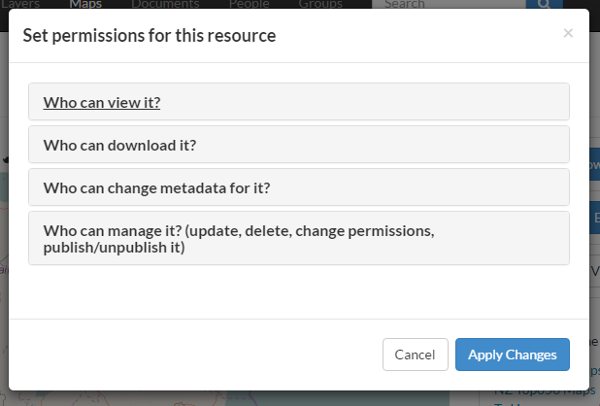
Click the Apply Changes button.
Remove a Map
You can remove a map completely from Geoshape. This action removes the map for all users.
Click on the Edit Map button
Edit map menu
Click on the Remove button
Confirm the removal of the map by clicking Yes, I am Sure