Editing Metadata and Managing Layers
Every layer has its own page with information about it. The layer page also provides a menu for options to edit information about the layer and manage the layer.
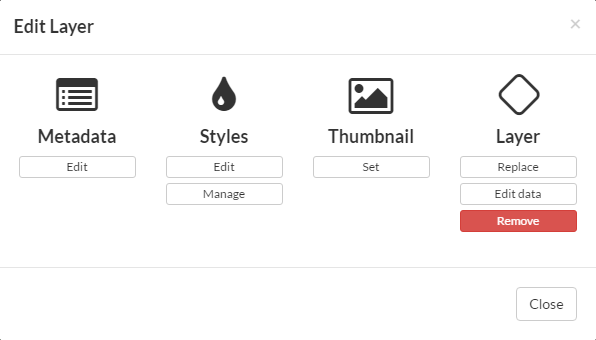
Edit Metadata
Metdata is information about the layer. It contains details such as the owner, title, purpose, restrictions, and more. This is where you can also edit the Abstract - which is the description that shows up for the layer in Geoshape.
- Click on the Edit Layer button and select Edit Metadata. This will take you to the metadata page.
- Edit information in the fields as appropriate.
- Click Update at the bottom of the form to save the changes
Edit Permissions
Layer permissions are set at the time of import. Permissions can be adjusted as needed by those who have the proper rights to administer the layer. The Permissions window allows you to manage who can view and download the data, who can edit the data, and who can manage the data.
Click on the Change Layer Permissions button
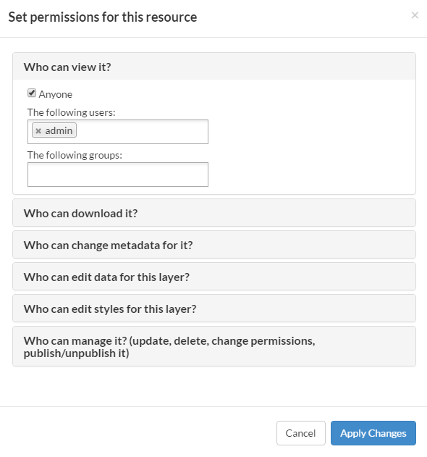
Make adjustments to permissions as needed.
Click Apply Changes to persist your changes.
Manage Styles
A layer can have a number of different styles associated with it. There is a default style associated with the layer and there can be others that represent different views of the data.
Note
Creating or changing styles is not recommended and can cause instability in the software. Contact the Geoshape administrator if you require a new style.
Click on the Edit Layer button and select Manage Styles.
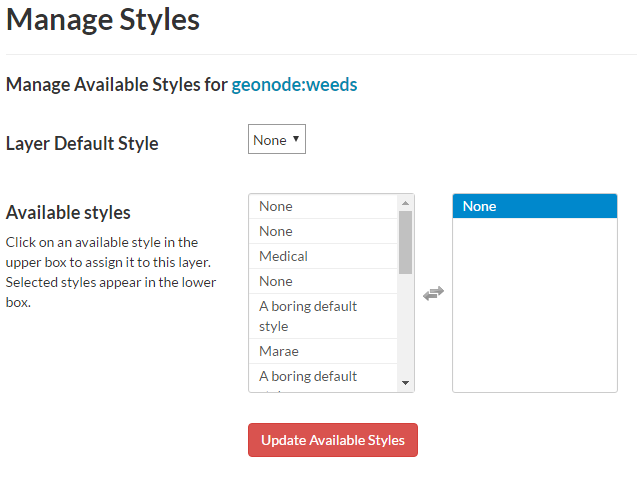
The Manage Styles page shows the available styles on the left and the styles associated with the layer on the right.
- To select a style, click on the name of the style in the left-hand list. The style will move to the right-hand list
- To remove a style, click on the name of the style in the right-hand list and then click the arrows between the lists.
- To persist your changes, click the Update Available Styles button.
Replace a Layer
Warning
The replace layer function does not work correctly at this time. Contact the Geoshape administrator if you need to replace a layer.
Selecting “Replace This Layer” allows you to import data in place of the existing layer.
- Click on the Edit Layer button and select Replace This Layer.
- Follow the instructions to upload a new file in place of the old layer.
Remove a Layer
Removing a layer will remove it completely from Geoshape for all users.
- Click on the Edit Layer button and select Remove This Layer
- Click “Yes, I am sure” to remove the layer, or “No, don’t remove it” to cancel the action.